
SafeSky alongside your Navigation App
Using SafeSky alongside your navigation software is easy and versatile, depending on your hardware and subscription type (free or PREMIUM).
You have different options:
For ease of illustration, the examples provided are based on the SkyDemon navigation software. However, other navigation software works in the same way.
SafeSky and your navigation software running separately without traffic sharing
SafeSky on your phone
You can run SafeSky on your phone while separately using a tablet for your navigation software.
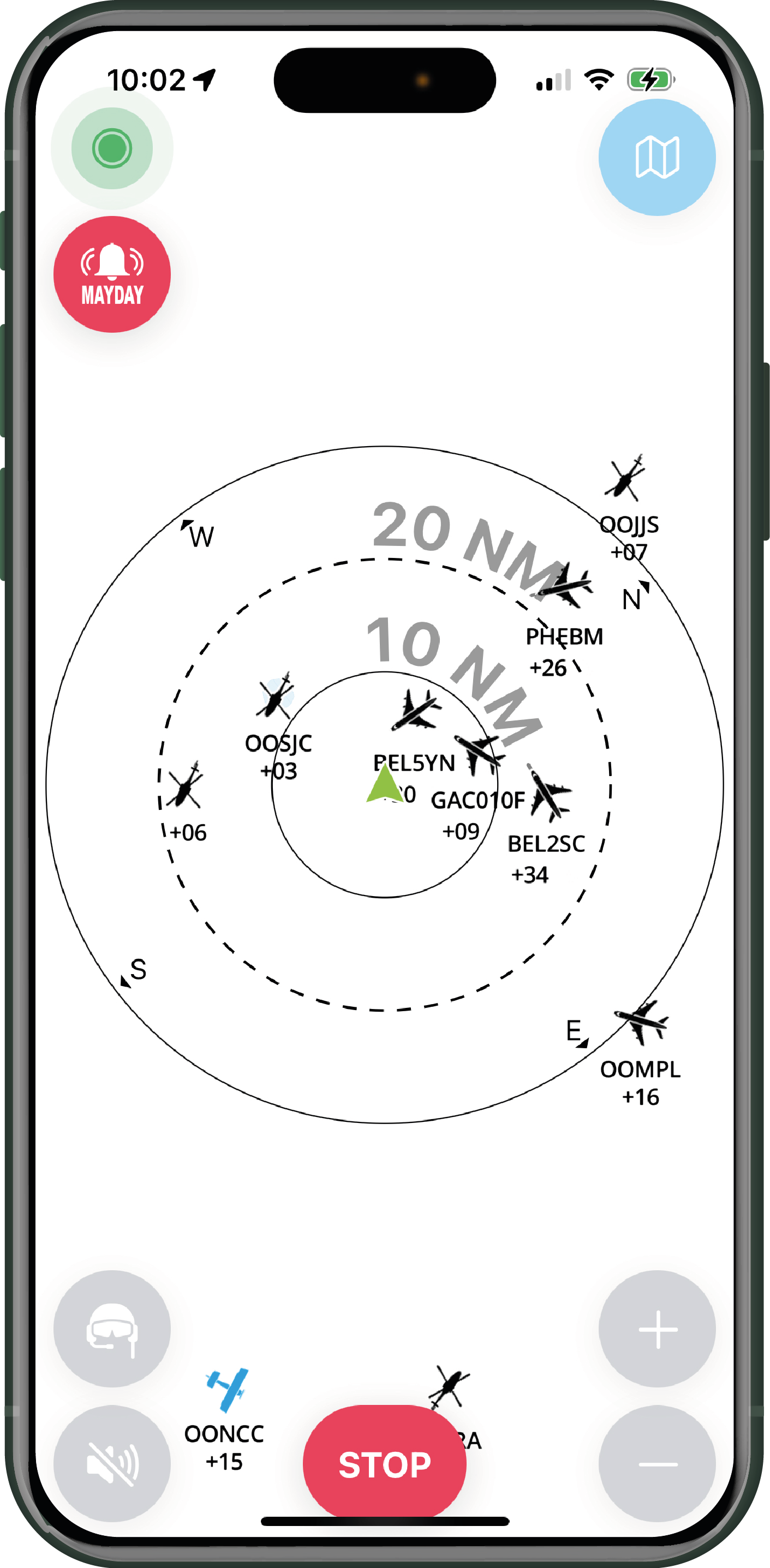
Please note that using SafeSky on your phone can be resource-intensive, combining GPS access, mobile internet, screen backlight, and regular phone functions. To avoid rapid battery depletion, it is recommended to connect your phone to a power source like a portable battery or your aircraft's power supply.
SafeSky on your tablet
If your tablet has a SIM card, you can use SafeSky and the navigation software in split-screen mode (SplitView).
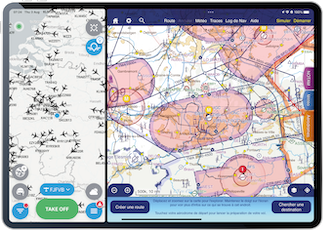
SafeSky and your navigation software running integrated with traffic sharing
Sharing traffic with your navigation software:
Details on how to share traffic are explained in the "Deep dive into SafeSky > Settings > Traffic sharing" chapter. The traffic sharing feature is available for PREMIUM users.
The traffic sharing feature is available for PREMIUM users.
Using only your phone
This scenario is common among pilots with smaller cockpits, such as paramotors and autogyros.
Here's how to proceed:
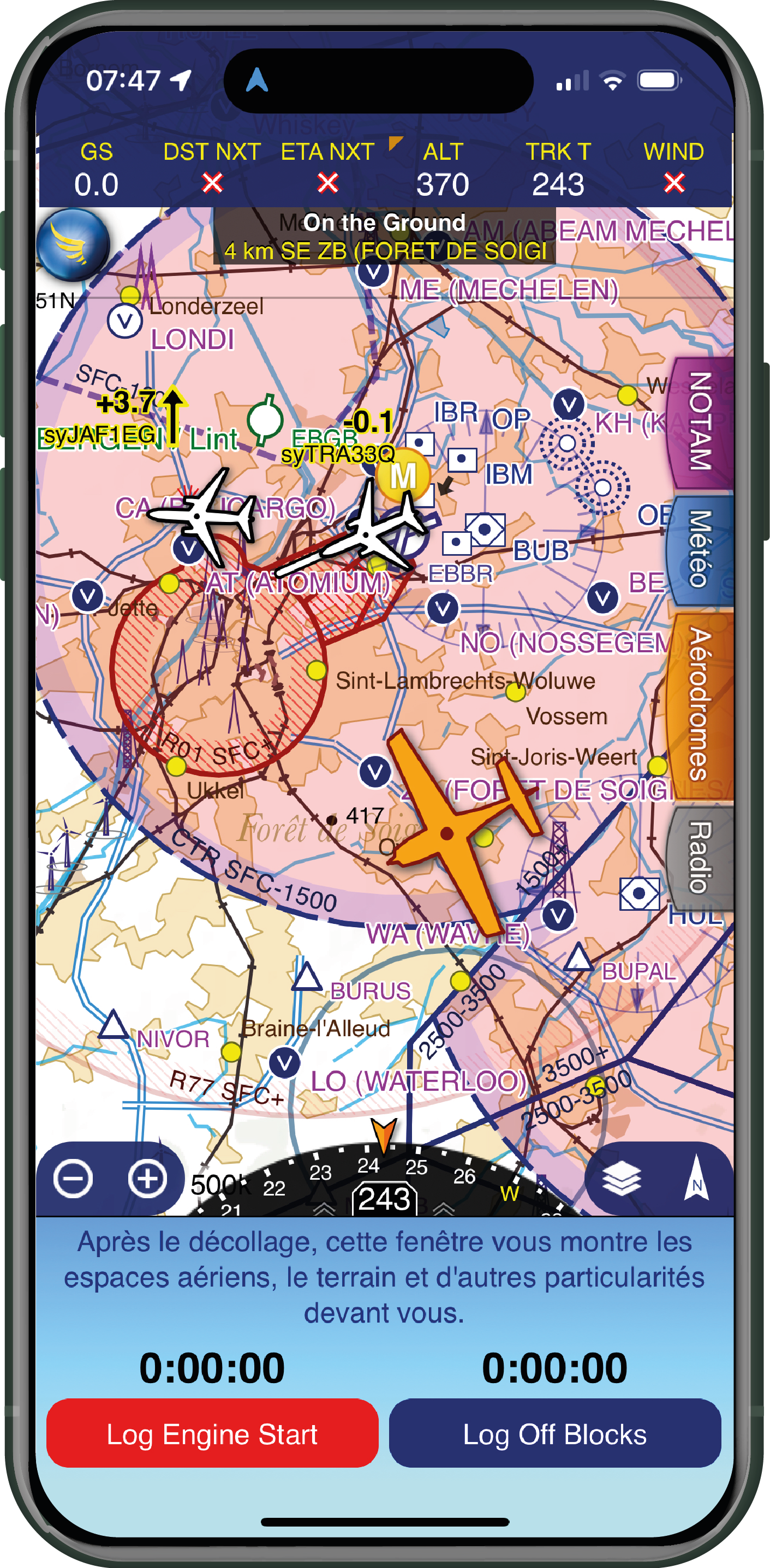
- Launch SafeSky, select your navigation software in the "Settings" and press "TAKE OFF."
- Launch your navigation software and configure traffic reception according to its documentation.
- Your traffic will be visible on your navigation map.
This is what your phone will display when using SkyDemon as the navigation software. SafeSky works in the background and shares the traffic with SkyDemon, enabling it to display the traffic on its maps.
Using only your tablet
Your tablet must have a SIM card for in-flight internet access.
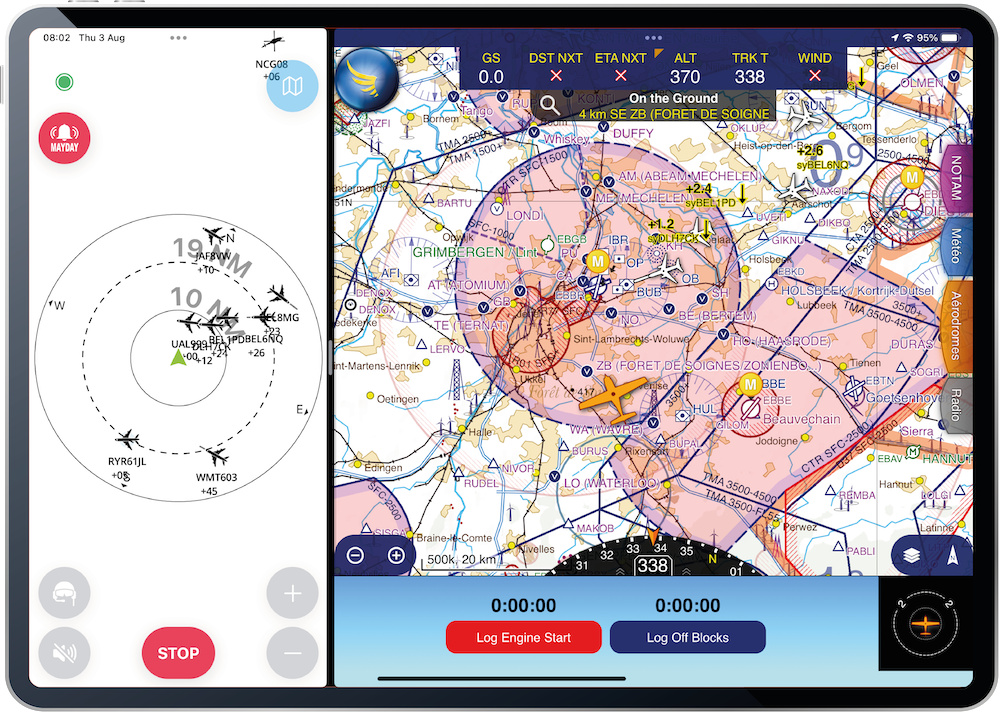
Depending on your tablet's screen size, you have two options: running SafeSky in the background or using split-screen mode.
Here's how to proceed:
- Launch SafeSky, select your navigation software in the "Settings", and press "TAKE OFF."
- Launch your navigation software and configure traffic reception as per its documentation.
- Choose one of the following display options:
- SafeSky in the background and navigation software in full screen.
- Split-screen mode, which provides comfort during the flight by combining SafeSky's radar alerts with the traffic display on your navigation map. Watch the video explaining this traffic integration set-up for more details.

Using both phone and tablet
Option 1 - Phone as hotspot
Connect your tablet to your phone's WiFi hotspot to access mobile internet and display the data as explained above.
Option 2 - Phone for SafeSky and tablet for navigation software
In this case, your tablet should not have a SIM card. Traffic will be sent directly from SafeSky to your navigation software.
Here's how to proceed:
- Launch SafeSky on your phone and configure "Settings / Traffic Sharing" to select your navigation software.
- Press "TAKE OFF."
- Launch the navigation software on your tablet, and the traffic will be displayed directly.
