
Best Practices
SafeSky UAV API - Integration Guide
This guide provides architectural patterns and best practices for integrating the SafeSky UAV API into mission control software, moving-map applications, and operational dashboards.
Overview
The SafeSky API enables developers to build production-grade air traffic awareness systems that display real-time positions of UAVs, helicopters, recreational aviation, general aviation aircraft, and commercial traffic.
This guide addresses the technical challenges of building responsive, scalable traffic layers for moving map applications—dynamic mapping interfaces where traffic must be rendered, updated, and managed in real-time as users interact with the map (panning, zooming, following UAV positions).
Key integration challenges solved:
- Efficient viewport-based traffic queries that adapt to map interactions
- Smooth traffic rendering with position extrapolation between updates
- Layer management and z-index handling for mixed traffic types
- Performance optimization for high-traffic-density areas
- Coordinate system handling and map projection compatibility
Reference Implementation: https://live.safesky.app
Key Design Goals
- Real-time traffic awareness with minimal latency
- Smooth, professional rendering on dynamic maps
- Efficient resource utilization for fleet operations
- Compliance with aviation best practices
1. Integration Architecture
Dual-Thread Pattern
Implement traffic retrieval and telemetry publishing as independent, asynchronous processes. This separation is critical for operational reliability.
┌─────────────────────┐      ┌─────────────────────┐
│  Traffic Retrieval  │      │   UAV Telemetry     │
│      Thread         │      │  Publisher Thread   │
├─────────────────────┤      ├─────────────────────┤
│ GET /v1/uav         │      │ POST /v1/uav        │
│ Viewport queries    │      │ Position updates    │
│ 3-second polling    │      │ 1Hz transmission    │
└─────────────────────┘      └─────────────────────┘
         ↓                            ↓
    ┌────────────────────────────────────┐
    │      Application State/Map         │
    └────────────────────────────────────┘
Architectural Benefits:
- Fault isolation: Network issues in one thread don't cascade to the other
- Independent scaling: Adjust polling and publishing rates separately
- Simplified error handling: Each thread manages its own retry logic
- Resource optimization: Non-blocking I/O prevents thread starvation
Implementation Note: In single-threaded environments (e.g., JavaScript), use separate async tasks or workers to achieve the same isolation.
JavaScript Example:
// Independent traffic retrieval (3-second polling)
async function pollTraffic() {
  setInterval(async () => {
    try {
      const viewport = getMapViewportWithOverscan();
      const traffic = await fetchTraffic(viewport);
      updateTrafficLayer(traffic);
    } catch (error) {
      console.error('Traffic retrieval error:', error);
    }
  }, 3000);
}

// Independent telemetry publishing (1Hz)
async function publishUAVTelemetry(uavList) {
  setInterval(async () => {
    try {
      await postTelemetry(uavList);
    } catch (error) {
      console.error('Publish error:', error);
    }
  }, 1000);
}
2. Traffic Retrieval Strategy
Efficient traffic retrieval is essential for a responsive UI and predictable backend load. The SafeSky UAV API supports two complementary ways to retrieve surrounding traffic using the same endpoint (GET /v1/uav):
- Viewport Query (bounding box): best for map rendering (what’s visible on screen).
- Radius Query (circle around a point): best for proximity logic (alerts, local awareness around a UAV/operator).
Choose the strategy based on how your application defines the “area of interest”.
2.1 Viewport-Based Queries
For map-based applications, use bounding box queries that align with the visible viewport:
GET /v1/uav?viewport=lat_min,lng_min,lat_max,lng_max
Example:
GET /v1/uav?viewport=48.8566,2.3522,48.8766,2.3922
Viewport queries are recommended for moving maps because they:
- Match how mapping SDKs work (screen = rectangle)
- Avoid fetching large off-screen traffic that won’t be rendered
- Scale naturally with zoom level (smaller bounds when zoomed in, larger when zoomed out)
2.2 Radius Queries
Use radius queries when your logic is centred around a specific point (e.g., UAV position, operator location, mission centroid) and you want all traffic within a fixed distance, regardless of the current map viewport.
GET /v1/uav?lat=<latitude>&lng=<longitude>&rad=<meters>
Example:
GET /v1/uav?lat=48.8566&lng=2.3522&rad=10000
Radius queries are recommended when you need:
- Proximity / safety alerting around a UAV (or operator) position
- Backend checks independent of UI viewport (e.g., monitoring a mission corridor)
- Applications without a map, or where map rendering is secondary
Trade-offs:
- A radius query may return aircraft outside the currently visible map area (if you also render a map)
- If used for rendering, you may want client-side filtering to prevent clutter outside the viewport
Technical Advantages of Viewport Query vs Radius Query:
| Aspect | Viewport Query | Radius Query |
|---|---|---|
| Zoom adaptability | Natural scaling with map bounds | Fixed circular area |
| Data efficiency | Fetches only visible region | Often includes off-screen data |
| Rendering alignment | 1:1 with visible area | Requires post-filtering |
| Edge cases | Handles rectangular screens correctly | Circular overlap issues |
2.3 Viewport Padding (Overscan)
In moving-map applications, the visible viewport changes continuously as the user pans, zooms, or as the own-ship position moves across the map. If traffic is queried only for the exact visible bounds, aircraft can appear abruptly at the screen edges or disappear momentarily during fast interactions.
To avoid this, extend the queried viewport 5–15% beyond the visible map area. This technique—commonly referred to as overscan allows the client to pre-fetch traffic that is about to enter the screen.
This approach is widely used in aviation navigation displays and professional GIS systems to ensure smooth visual continuity.
Implementation Example:
const OVERSCAN_FACTOR = 0.10; // 10% padding

function getQueryViewport(mapBounds) {
  const latPadding = (mapBounds.north - mapBounds.south) * OVERSCAN_FACTOR;
  const lngPadding = (mapBounds.east - mapBounds.west) * OVERSCAN_FACTOR;

  return {
    lat_min: mapBounds.south - latPadding,
    lng_min: mapBounds.west - lngPadding,
    lat_max: mapBounds.north + latPadding,
    lng_max: mapBounds.east + lngPadding
  };
}
Why this matters for moving maps
- Smooth panning: Aircraft already exist just outside the visible area, so panning the map does not trigger sudden icon appearances.
- Predictable motion: Fast-moving aircraft (e.g. 150–250+ knots) remain visible and continuous between polling cycles.
- Reduced visual jitter: Small map movements do not require immediate re-queries, improving UI stability.
- Professional look & feel: Matches the behaviour users expect from aviation-grade navigation displays.
2.4 Polling Frequency
Recommended interval: 3 seconds
This frequency balances real-time awareness with bandwidth efficiency.
Network Optimization:
- Consider compression (gzip) for responses
- Debounce rapid viewport changes (wait 300-500ms after user stops moving map)
- Only query when viewport changes significantly (>20% of current bounds)
3. Understanding UAV Traffic Types
The SafeSky UAV API can return two different kinds of UAV-related traffic, and it is important to treat them differently in both your UI and your safety logic:
- Live Traffic: real-time objects with a precise position (a tracked point).
- Advisory Traffic: declared or expected UAV operation areas (an active zone with declared maximum altitude, not a track).
These two traffic types serve different operational purposes. Live traffic answers the question “Where is it right now?”, while advisory traffic answers “UAV activity is taking place in this area.”
Live Traffic vs. Advisory Traffic
| Characteristic | Live Traffic | Advisory Traffic |
|---|---|---|
| What it represents | Actively tracked aircraft or UAV | Declared UAV operation area |
| Geometry | Point (latitude / longitude) | GeoJSON Polygon |
| Precision | High (GPS / transponder based) | Medium to low (area of activity) |
| Update frequency | Typically every 1–5 seconds | Typically ~1 minute |
| User interpretation | “This object is here and moving” | “UAV activity is occuring here” |
| Rendering model | Aircraft/UAV icon with heading | Area overlay (no heading) |
| Primary purpose | Tactical awareness & deconfliction | Strategic awareness & caution |
3.1 Live Traffic
Live traffic represents aircraft and UAVs that are actively broadcasting telemetry, such as ADS-B, FLARM, ADS-L, or UAV telemetry. These objects should be treated as moving tracked targets.
Typical characteristics:
- Precise
latitudeandlongitude - Motion data such as
ground_speed,course(and sometimesvertical_rate) - A recent
last_updatetimestamp - A
statussuch asAIRBORNE,GROUNDED, orINACTIVE - Optional
accuracyinformation
Live traffic response model (example):
{
  "id": "UAV123",
  "latitude": 48.86584,
  "longitude": 2.63723,
  "beacon_type": "UAV",
  "call_sign": "FlyingFrog",
  "transponder_type": "ADS-B",
  "last_update": 1733412793,
  "altitude": 180,
  "course": 250,
  "ground_speed": 24,
  "status": "AIRBORNE",
  "accuracy": 10
}
Rendering guidance for live traffic:
- Render as a point symbol (UAV icon).
- Rotate the icon according to
course. - Use smooth motion (extrapolation / dead reckoning) between polling cycles.
- Apply data ageing rules (fade → uncertainty → removal) based on
last_update.
3.2 Advisory Traffic (Operational Areas)
Advisory traffic represents declared UAV operations rather than tracked objects. It indicates areas where UAV activity is planned or ongoing, even when no live telemetry is available.
Advisory traffic is returned as a GeoJSON FeatureCollection, where each feature describes an operational area:
- Polygon geometry: explicit area boundaries.
- Point geometry +
max_distance: centre point with an operational radius.
Advisory traffic response model (example):
{
  "type": "FeatureCollection",
  "features": [
    {
      "type": "Feature",
      "properties": {
        "id": "Advisory123",
        "call_sign": "UAV_Alpha",
        "last_update": 1738142598,
        "max_altitude": 150,
        "remarks": "Surveying area"
      },
      "geometry": {
        "type": "Polygon",
        "coordinates": [
          [
            [4.39201, 50.69378],
            [4.39300, 50.69400],
            [4.39400, 50.69500],
            [4.39201, 50.69378]
          ]
        ]
      }
    }
  ]
}
Rendering guidance for advisory traffic:
- Render as an area overlay (polygon or circle).
- Use semi-transparent fills to preserve map readability.
- Display a label with
call_sign(or ID) andmax_altitude. - Do not render heading indicators, motion vectors, or animations.
- Update less frequently than live traffic (advisories change slowly).
Key rule: advisory traffic is a risk / awareness zone, not a precise position.
3.3 Common Pitfalls
- Do not extrapolate advisory areas. They are static operational zones.
- Do not use identical colours or styles for live and advisory traffic.
- Do not apply the same expiry timing to live and advisory data.
3.4 Recommended UX Behaviour
- Display live traffic above advisory areas (higher z-index).
- Use clearly distinct colours and shapes for each traffic type.
- On user interaction:
- Live traffic: show call sign, altitude, speed, last update, and source.
- Advisory traffic: show operation name, max altitude, remarks, and last update.
- Apply different ageing thresholds:
- Live traffic expires quickly to avoid stale precision.
- Advisory traffic persists longer but updates infrequently.
Display Recommendations
Displaying Live Traffic
Live traffic should be rendered as precise point symbols with real-time updates:
Visual Styling:
- Icon: Aircraft/UAV symbol oriented by course heading
- Position: Exact lat/lng coordinates
- Animation: Smooth extrapolation between updates
- Label: Show call_sign, altitude, and ground_speed
- Color: Solid, distinct color by beacon_type
Implementation:
- Use standard aircraft icons (see Section 10)
- Apply position extrapolation (see Section 6)
- Update icon rotation based on
course - Display motion vector or heading indicator
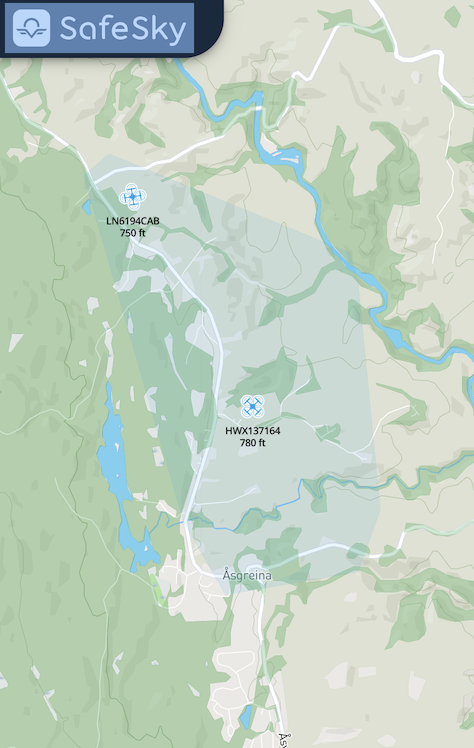
Displaying Advisory Traffic
Advisory traffic should be rendered as area indicators rather than precise points.
Visual Styling:
- Fill: Semi-transparent orange/amber (20-30% opacity)
- Stroke: Solid distinct color (e.g.,
rgb(255, 140, 0)) - Label: Show call_sign and max_altitude
- Z-Index: Below live traffic
- No heading indicator: Advisory areas are static zones
Implementation Example:
function renderPolygonAdvisory(advisoryGeoJSON) {
  const features = advisoryGeoJSON.features.map(feature => {
    const props = feature.properties;

    if (feature.geometry.type === 'Polygon') {
      // Convert GeoJSON coordinates to map projection format
      const coordinates = feature.geometry.coordinates[0].map(coord =>
        [coord[0], coord[1]] // [lng, lat]
      );

      // Render polygon with exact boundaries
      const polygon = new Polygon({
        coordinates: [coordinates],
        fill: 'rgba(255, 165, 0, 0.25)', // Semi-transparent orange
        stroke: 'rgb(255, 140, 0)',
        strokeWidth: 2
      });

      // Calculate polygon centroid for label placement
      const centroid = calculatePolygonCentroid(coordinates);

      const label = new Label({
        position: centroid,
        text: `${props.call_sign || props.id}\nMax Alt: ${props.max_altitude}m`,
        style: {
          backgroundColor: 'rgba(255, 255, 255, 0.8)',
          padding: '4px',
          borderRadius: '4px'
        }
      });

      return [polygon, label];
    } else if (feature.geometry.type === 'Point') {
      // Handle point-based advisory within GeoJSON
      const coords = feature.geometry.coordinates;
      const radius = props.max_distance || 500;

      const circle = new Circle({
        center: [coords[0], coords[1]],
        radius: radius,
        fill: 'rgba(255, 165, 0, 0.25)',
        stroke: 'rgb(255, 140, 0)',
        strokeWidth: 2
      });

      return circle;
    }
  }).flat();

  return features;
}

// Helper function for centroid calculation
function calculatePolygonCentroid(coordinates) {
  let x = 0, y = 0;
  coordinates.forEach(coord => {
    x += coord[0];
    y += coord[1];
  });
  return [x / coordinates.length, y / coordinates.length];
}
Rendering Best Practices:
- Coordinate Order: GeoJSON uses
[longitude, latitude]order—ensure your mapping library expects this format - Closed Polygons: The first and last coordinates are identical in GeoJSON; some libraries auto-close, others don't
- Multi-Polygon Support: If advisories can have holes or multiple parts, handle
MultiPolygongeometry type - Simplification: For complex polygons with many vertices, consider simplification at high zoom levels for performance
- Label Placement: Position labels at the polygon centroid or largest interior point to avoid edge placement
- Point Geometry: When rendering Point-based advisories, use the
max_distanceproperty as the circle radius
Visual Distinction is Critical:
- Users must immediately recognize advisory areas as zones of potential activity, not exact positions
- Never render advisory traffic with precise aircraft icons that imply real-time tracking
- Always show the operational radius/area visually
- Use different colors/styles to distinguish from live traffic
User Experience Guidelines:
- Hover/Click Info: Display call_sign, max_altitude, remarks (if available), and last_update timestamp
- Opacity: Use semi-transparent fills (20-30% opacity) to avoid obscuring map features
- Z-Index: Render advisory areas below live traffic to maintain priority
- Update Frequency: Advisory areas change infrequently; avoid aggressive re-rendering
Example: Mixed Traffic Response
When querying traffic with GET /v1/uav, you receive an array of live traffic objects:
[
  {
    "latitude": 48.86584,
    "longitude": 2.63723,
    "beacon_type": "JET",
    "call_sign": "IBE06CK",
    "transponder_type": "ADS-B",
    "last_update": 1733412793,
    "altitude": 10554,
    "course": 205,
    "ground_speed": 237,
    "status": "AIRBORNE",
    "id": "3423C3"
  },
  {
    "id": "hx-137105",
    "latitude": 63.41303,
    "longitude": 10.11205,
    "beacon_type": "UAV",
    "accuracy": 1852,
    "call_sign": "HWX137105",
    "transponder_type": "ADVISORY",
    "last_update": 1766068287,
    "altitude": 231,
    "course": 0,
    "ground_speed": 0,
    "remarks": "Axel B\n97497815\nAviant",
    "operation_area": "{\"type\":\"Polygon\",\"coordinates\":[[[10.11204838,63.42966685],[10.10479224,63.42934699],[10.09781542,63.42839974],[10.09138643,63.42686155],[10.08575261,63.42479163],[10.08113055,63.42226962],[10.07769777,63.41939255],[10.07558594,63.41627108],[10.07487581,63.41302522],[10.07559419,63.40977973],[10.07771302,63.4066593],[10.08115047,63.4037838],[10.08577418,63.40126364],[10.09140636,63.39919557],[10.09783067,63.39765894],[10.10480049,63.39671274],[10.11204838,63.39639325],[10.11929626,63.39671274],[10.12626608,63.39765894],[10.1326904,63.39919557],[10.13832258,63.40126364],[10.14294628,63.4037838],[10.14638373,63.4066593],[10.14850256,63.40977973],[10.14922095,63.41302522],[10.14851081,63.41627108],[10.14639898,63.41939255],[10.14296621,63.42226962],[10.13834414,63.42479163],[10.13271032,63.42686155],[10.12628133,63.42839974],[10.11930452,63.42934699],[10.11204838,63.42966685]]]}",
    "status": "AIRBORNE"
  },
  {
    "id": "096E2863",
    "latitude": 59.17081,
    "longitude": 9.5268,
    "beacon_type": "HELICOPTER",
    "vertical_rate": 45,
    "accuracy": 0,
    "call_sign": "ROTORWING 30",
    "transponder_type": "ADS-BI",
    "last_update": 1766068285,
    "altitude": 450,
    "altitude_accuracy": 10,
    "course": 315,
    "ground_speed": 54,
    "status": "AIRBORNE"
  }
]
Note: Advisory traffic is retrieved separately as GeoJSON via the same endpoint when advisory areas are active in the queried region.
4. Publishing UAV Information
The SafeSky API provides two distinct publishing mechanisms depending on whether you have live telemetry or only planned operation areas.
4.1 Live UAV Telemetry Publishing
Endpoint: POST /v1/uav
Use this when you have real-time position data from active UAVs.
POST /v1/uav
Content-Type: application/json
Publishing Frequency: 1 second (1Hz)
Batch Publishing for Fleet Operations
When managing multiple UAVs, always use batch publishing by sending an array of telemetry objects in a single request.
Performance Comparison:
| Approach | UAVs | Requests/sec | HTTP Overhead | Network Latency |
|---|---|---|---|---|
| Individual | 10 | 10 | ~4KB | 10× RTT |
| Batch | 10 | 1 | ~400B | 1× RTT |
Key Benefits:
- Reduced overhead: Single HTTP handshake vs. multiple connections
- Lower latency: One round-trip instead of N round-trips
- Improved scalability: Essential for swarm operations (20+ UAVs)
Best Practice: Aggregate telemetry in your application loop and publish the entire fleet state atomically.
Example: Batch UAV Publish Payload
[
  {
    "id": "UAV1",
    "latitude": 48.86584,
    "longitude": 2.63723,
    "altitude": 120,
    "course": 205,
    "ground_speed": 12,
    "status": "AIRBORNE",
    "last_update": 1733412793
  },
  {
    "id": "UAV2",
    "latitude": 48.87012,
    "longitude": 2.64188,
    "altitude": 115,
    "course": 210,
    "ground_speed": 10,
    "status": "AIRBORNE",
    "last_update": 1733412793
  }
]
5. Pre-Flight Visibility
GROUNDED Status Broadcasting
Publish UAV position with status: "GROUNDED" 3-5 minutes before takeoff.
{
  "id": "UAV1",
  "latitude": 48.86584,
  "longitude": 2.63723,
  "altitude": 0,
  "status": "GROUNDED",
  "last_update": 1734537600
}
Operational Rationale:
- Provides advanced notification to nearby crewed aircraft and helicopters
- Establishes situational awareness before airspace usage
- Aligns with aviation practice of pre-flight intent signaling
- Particularly important near helipads, airports, or low-altitude flight zones
State Transition:
Transition to status: "AIRBORNE" immediately upon takeoff to reflect actual flight status.
Implementation Note: For mission planning applications, this can be automated based on pre-filed flight plans or launch schedules.
6. Smooth Motion Rendering
Client-Side Position Extrapolation
Traffic updates arrive at discrete 3-second intervals. To achieve smooth animation, implement dead reckoning between updates.
Algorithm:
function extrapolatePosition(aircraft, currentTime) {
  const elapsedSeconds = (currentTime - aircraft.last_update) / 1000;
  const distanceMeters = aircraft.ground_speed * elapsedSeconds;

  const deltaLat = distanceMeters * Math.cos(aircraft.course * Math.PI / 180) / 111320;
  const deltaLng = distanceMeters * Math.sin(aircraft.course * Math.PI / 180) /
                   (111320 * Math.cos(aircraft.latitude * Math.PI / 180));

  return {
    latitude: aircraft.latitude + deltaLat,
    longitude: aircraft.longitude + deltaLng
  };
}
Animation Approach:
Use requestAnimationFrame to call extrapolatePosition for each traffic marker at 60fps, creating smooth motion between 3-second API updates.
Rendering Impact:
- Transforms discrete position updates into fluid 60fps animation
- Eliminates visual "jumping" or "teleporting" artifacts
- Creates professional, aviation-grade map presentation
- Improves user perception of traffic flow patterns
Limitation: Extrapolation assumes constant velocity and heading. Maneuvering aircraft may show brief position discrepancies until the next update.
7. Map Layer Management
Layer Z-Index Organization
Proper layer ordering ensures visual clarity in moving map applications:
┌─────────────────────────────────────┐
│  Traffic Labels & Tooltips   (top)  │
├─────────────────────────────────────┤
│  Live Traffic Icons                 │
├─────────────────────────────────────┤
│  Uncertainty Circles                │
├─────────────────────────────────────┤
│  Advisory Overlays                  │
├─────────────────────────────────────┤
│  Base Map                  (bottom) │
└─────────────────────────────────────┘
Key Principles:
- Live traffic icons render above advisory overlays
- Advisory areas use semi-transparent fills (20-30% opacity)
- Separate live traffic markers from advisory polygons in different layer groups
- GeoJSON coordinates are
[longitude, latitude]—convert to your map library's format - Use click handlers on live traffic; avoid on advisory overlays to prevent blocking map interaction
Implementation varies by mapping SDK:
- Leaflet:
L.layerGroup()with custom panes and z-index - Mapbox GL JS: Layer IDs with
beforeIdparameter - Google Maps:
setZIndex()on overlay objects - OpenLayers: Z-index in layer style definitions
8. Traffic Aging and Expiry
Data Freshness Management
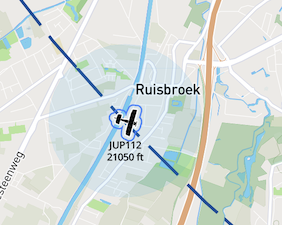
Different traffic sources have different validity windows based on their update characteristics.
Advisory UAV Traffic:
- Validity: Up to 2 minutes after last update
- Rationale: Lower speed and predictable flight patterns
- Display: Apply visual indicators for aged data (reduced opacity, uncertainty ring)
Real-Time Air Traffic (ADS-B, FLARM, ADS-L):
| Age | State | Visualization |
|---|---|---|
| 0-30s | Current | Full opacity, normal icon |
| 30-45s | Stale | Reduced opacity + expanding uncertainty circle |
| >45s | Expired | Remove from display |
Uncertainty Visualization:
Implementation Approach:
function getUncertaintyRadius(lastUpdate, currentTime, groundSpeed) {
  const ageSeconds = (currentTime - lastUpdate) / 1000;
  if (ageSeconds < 30) return 0;

  // Assume maximum maneuvering potential
  const maxDistanceMeters = groundSpeed * 0.514444 * ageSeconds;
  return maxDistanceMeters; // Display as circle radius
}
Purpose: Prevents false precision in position estimates. Users see explicit uncertainty rather than misleading "current" positions.
Visual Design: Use semi-transparent expanding circles that grow linearly with time since last update.
9. Visual Design Guidelines
Traffic Icon States
Implement progressive visual feedback to communicate data confidence:
| Current (0–30s) | Aging (30–45s) | Uncertain | Expired (>45s) |
|---|---|---|---|
| Solid icon Full color |
70% opacity Subtle pulse |
+ uncertainty circle | Remove from display |
Traffic Categorization
Use distinct iconography for different aircraft types:
- UAV/Drone: Quadcopter or fixed-wing silhouette
- Helicopter: Rotor-based icon with rotation indicator
- General Aviation: Small aircraft silhouette
- Commercial: Larger aircraft profile
- Unknown: Generic aircraft symbol
Accessibility Note: Ensure icons are distinguishable by shape, not just color, for colorblind users.
10. Icon Assets
SafeSky provides optimized icon sets for rapid integration.
Download: aircraft_icons.zip
Beacon Type to Icon Mapping:
The table below defines the standard mapping between beacon types returned by the SafeSky API and the corresponding icon assets to be used for visualisation. Each beacon type is associated with a default static SVG icon.
For certain aircraft categories where motion is an important visual cue (notably helicopters and gyrocopters), an optional animated icon set is available. These animation frames can be cycled to represent rotor movement and improve situational awareness, but their use is optional and depends on client-side rendering capabilities and performance constraints.
| Beacon type | Icon (static) | Optional animation |
|---|---|---|
| UNKNOWN | dot.svg |
— |
| STATIC_OBJECT | dot.svg |
— |
| GLIDER | glider.svg |
— |
| PARA_GLIDER | para_glider.svg |
— |
| HAND_GLIDER | hand_glider.svg |
— |
| PARA_MOTOR | para_motor.svg |
— |
| PARACHUTE | parachute.svg |
— |
| FLEX_WING_TRIKES | flex_wing_trikes.svg |
— |
| THREE_AXES_LIGHT_PLANE | light_aircraft.svg |
— |
| MOTORPLANE | aircraft.svg |
— |
| JET | heavy_aircraft.svg |
— |
| HELICOPTER | helicopter.svg |
helicopter-anim_0.svg … helicopter-anim_3.svg |
| GYROCOPTER | gyrocopter.svg |
gyrocopter-anim_0.svg … gyrocopter-anim_3.svg |
| AIRSHIP | airship.svg |
— |
| BALLOON | ballon.svg |
— |
| UAV | uav.svg |
— |
| PAV | pav.svg |
— |
| MILITARY | military.svg |
— |
11. Configuration Reference
Timing Parameters
| Parameter | Value | Rationale |
|---|---|---|
| GET traffic (viewport) | 3 seconds | Optimal balance of real-time awareness and bandwidth efficiency |
| POST UAV telemetry | 1 second | Maintains continuity for receiving applications |
| Pre-flight GROUNDED publish | 3–5 min before takeoff | Provides advanced notice to nearby traffic |
| Uncertainty visualization | 30 seconds after update | Reflects realistic position drift |
| Traffic expiry (non-UAV) | 45 seconds after update | Prevents stale data display |
| UAV expiry | 2 minutes after update | Accommodates lower-frequency updates |
| Viewport overscan | 10-15% | Eliminates edge transition artifacts |
12. Reference Implementation
Explore a production implementation of these patterns:
Live Demo: https://live.safesky.app
The reference implementation demonstrates:
- Dual-thread architecture with independent polling and publishing
- Viewport-based queries with dynamic overscan
- Client-side position extrapolation for smooth rendering
- Progressive data aging with uncertainty visualization
- Batch telemetry publishing for fleet operations
Use the browser developer tools to observe network traffic patterns, polling behavior, and rendering optimizations in a production environment.